













How to Enable Percentage in Geometry Dash
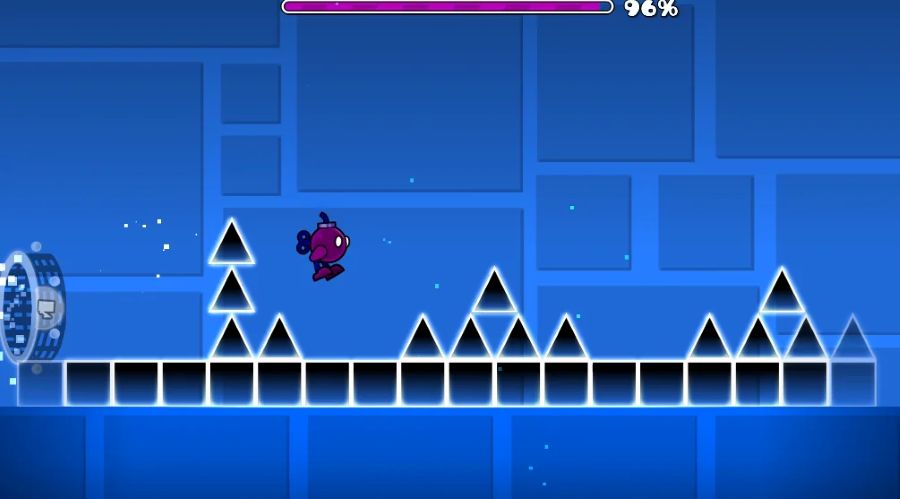
To learn how to enable percentage in Geometry Dash, start a classic level, pause the game, open the settings gear, and turn on Show Percentage. Your current completion percentage will then appear at the top of the screen during attempts. You can also enable Show Progress Bar for a visual indicator and Percentage Decimals for more precise progress. Players can practice timing-based browser games through ABCya3.
The Show Percentage option applies to classic Geometry Dash levels. Platformer levels use elapsed time instead, so you may see a Show Time setting rather than the traditional percentage-based progress display.
Quick Answer
Open any classic Geometry Dash level and pause it. Select the gear icon in the pause menu, then enable Show Percentage. Turn on Show Progress Bar as well if you want the bar displayed above the percentage. For more accurate numbers in Geometry Dash 2.2, open the main Settings menu, go to Options, find the Other settings, and enable Percentage Decimals.
Table of Contents
- What Does the Percentage Display Do?
- How to Enable Percentage in Geometry Dash
- How to Enable the Progress Bar
- How to Enable Decimal Percentage
- How to Show Percentage on Mobile
- How to Show Percentage on PC
- Does Percentage Work in Platformer Mode?
- Why Is Geometry Dash Percentage Not Showing?
- Current Percentage vs. Best Percentage
- Best Percentage Settings for Difficult Levels
- Conclusion
- Frequently Asked Questions
What Does the Percentage Display Do?
The percentage display tells you how far you have progressed through a classic Geometry Dash level during the current attempt. The number begins near 0% and rises as your icon moves toward the end.
Reaching 100% means you have completed the level in Normal Mode. If you crash before the end, your best percentage can be recorded so you know whether the attempt improved your previous result.
The percentage display is especially useful when practicing difficult levels. A jump from 42% to 68%, for example, immediately shows that you successfully passed a section that previously ended most attempts.
| Display Option | Purpose |
|---|---|
| Show Percentage | Displays your numerical progress during a classic level |
| Show Progress Bar | Displays a visual bar representing level progress |
| Percentage Decimals | Adds decimal precision to the percentage display |
| Show Time | Displays elapsed time during platformer levels |
You do not need a mod or hack to display normal percentages. Geometry Dash includes the feature directly in its own settings.
How to Enable Percentage in Geometry Dash Step by Step
The easiest method is to change the option while you are already inside a level. You can test the setting immediately by opening Geometry Dash and checking whether your version includes the same interface.
- Open a classic level. Start an official or user-created level that uses normal Geometry Dash gameplay.
- Pause the level. Tap the pause button on mobile or press Esc on PC.
- Open the extended settings. Select the gear icon from the pause menu.
- Find Show Percentage. Look through the available gameplay display options.
- Enable Show Percentage. Turn the option on.
- Enable Show Progress Bar if desired. This adds the visual progress bar at the top.
- Return to the level. Resume or restart your attempt.
- Check the top of the screen. Your current percentage should now appear while playing.
The setting normally remains enabled for later levels, so you should not need to repeat these steps before every attempt.
Where Is the Show Percentage Setting?
In current versions, one convenient way to reach it is through the extended options available from the level pause menu. Pause a classic level, select the settings gear, and look for Show Percentage.
If you see Show Progress Bar but no number during gameplay, confirm that Show Percentage itself is also enabled. The bar and numerical percentage are separate display options.
How to Enable the Progress Bar in Geometry Dash
The progress bar provides a visual representation of how much of the level remains. It appears at the top of the gameplay screen and gradually fills as you approach the end.
- Start a classic level.
- Pause the game.
- Open the gear menu.
- Find Show Progress Bar.
- Turn the setting on.
- Make sure Show Percentage is also enabled if you want a numerical value.
- Resume the level.
Some players prefer percentage only because it takes up less visual space. Others use both the number and progress bar because the combination makes long attempts easier to track.
| Setup | What You See | Best For |
|---|---|---|
| Percentage only | A numerical progress value | Minimal interface |
| Progress bar only | A visual progress indicator | Quick visual feedback |
| Percentage + progress bar | Both numerical and visual progress | Most players |
| Percentage + decimals | More precise progress numbers | Difficult level practice |
How to Enable Decimal Percentage in Geometry Dash
Geometry Dash 2.2 includes a built-in Percentage Decimals option. This means players can obtain more precise progress information without installing a third-party percentage mod.
The setting is separate from Show Percentage. You must enable the normal percentage display first before decimal precision becomes useful during gameplay.
- Return to the main menu.
- Open Settings. Select the gear icon.
- Choose Options.
- Navigate through the settings pages.
- Find the Other section.
- Enable Percentage Decimals.
- Make sure Show Percentage is enabled.
- Start a classic level and check the display.
What Does Percentage Decimals Do?
Without decimal precision, the game displays progress as a whole-number percentage. A difficult attempt might therefore appear simply as 73%.
Percentage Decimals provides a more precise reading. This can help when two attempts end within a very small part of the same section.
For casual play, ordinary percentages are usually enough. Decimal values become more useful when practicing long levels, Demon levels, or sections where only a small amount of progress separates two attempts.
How to Enable Percentage on Geometry Dash Mobile
The basic process on Android and iOS is similar because the relevant display controls can be accessed from the in-level pause interface.
- Launch Geometry Dash.
- Open a classic level.
- Tap the pause button.
- Tap the gear icon.
- Enable Show Percentage.
- Enable Show Progress Bar if desired.
- Return to gameplay.
If you also want decimal progress, return to the main settings and look for Percentage Decimals within the Options pages.
Percentage can be particularly useful on mobile because the smaller screen can make visual progress harder to judge. The number gives you an immediate indication of whether you passed your previous difficult section.
How to Enable Percentage on Geometry Dash PC
PC players follow almost the same procedure, although pausing is faster with the keyboard.
- Start a classic Geometry Dash level.
- Press Esc to pause.
- Select the gear icon in the pause menu.
- Enable Show Percentage.
- Enable Show Progress Bar if desired.
- Exit the options and resume the attempt.
For decimal percentages, open the main settings, enter Options, navigate to the Other settings, and enable Percentage Decimals.
You do not need Mega Hack, Geode, or another modification for the standard percentage and decimal-percentage features available in current versions.
Does Percentage Work in Geometry Dash Platformer Mode?
The traditional Show Percentage display is designed for classic levels. Platformer mode measures progression differently because the player can stop, move backward, explore different paths, and spend varying amounts of time reaching the end.
Instead of relying on the same percentage-based HUD, platformer levels provide a Show Time option that displays how long the current run has lasted.
| Level Type | Main Progress Display |
|---|---|
| Classic Level | Percentage and optional progress bar |
| Platformer Level | Elapsed time |
This is why players may enter a platformer level and wonder why Show Percentage does not behave exactly as expected. The two level types use different progression systems.
Why Is My Percentage Not Showing in Geometry Dash?
If you followed the steps but still cannot see the percentage, check the following common causes.
Show Percentage Is Turned Off
Pause the level, open the gear menu, and verify that Show Percentage is enabled. Turning on Show Progress Bar alone does not necessarily enable the numerical display.
You Are Playing a Platformer Level
Show Percentage is intended for classic levels. Platformer stages focus on elapsed time instead, so look for the Show Time setting.
You Enabled Only Percentage Decimals
Percentage Decimals changes the precision of an existing percentage display. It does not replace the Show Percentage setting.
Enable Show Percentage first, then turn on Percentage Decimals when you want more accuracy.
Your Version Is Outdated
Older Geometry Dash versions may organize settings differently and may not include newer 2.2 features such as the built-in decimal percentage option.
Update the game when possible and check the settings again.
You Are Playing a Browser Adaptation
Browser recreations and hosted versions may not match the current official mobile or PC release exactly. Some omit settings, use older game builds, or provide their own interface.
If Show Percentage is completely absent, the version you are playing may simply not support that particular option.
The HUD Is Difficult to See
If the percentage is enabled but appears hard to notice, also enable the progress bar and check your display configuration. A different resolution or full-screen setting may make interface elements easier to read.
Current Percentage vs. Best Percentage
Geometry Dash uses percentage in more than one context. Understanding the difference prevents confusion when your in-level display does not match the number shown on the level menu.
Current Run Percentage
This number shows how far you have progressed during the attempt you are currently playing. It continually increases as you move through a classic level.
Best Percentage
Your best percentage records the farthest point reached across previous Normal Mode attempts. For example, if your record is 72% and your current attempt ends at 65%, the level menu should continue displaying 72% as your best.
Practice Mode Progress
Practice Mode is intended for learning sections with checkpoints. Completing a level in Practice Mode does not count as a Normal Mode completion, even though you may reach the end.
The percentage display is therefore most useful when combined with an understanding of the mode you are playing.
Best Percentage Settings for Difficult Levels
Percentage tracking becomes especially valuable when practicing demanding Arcade games where repeated attempts and precise timing are central to improvement.
Turn On Show Percentage
This is the most important option. It gives you immediate numerical feedback and makes it easy to compare attempts.
Use Percentage Decimals for Precise Practice
Decimal progress can reveal small improvements that whole percentages hide. This is particularly useful when practicing a difficult transition near the end of a long level.
Use the Progress Bar if It Does Not Distract You
The progress bar helps you estimate how much of a level remains without reading the number. However, some players prefer a cleaner screen and disable it while keeping the percentage visible.
Do Not Watch the Number Constantly
The percentage should provide feedback, not become a distraction. Looking at the number during a difficult timing section can cause you to lose concentration.
Focus on gameplay first and use the percentage to evaluate the attempt after you pass or fail a major section.
Track Consistency, Not Just Your Personal Best
Reaching 90% once is encouraging, but consistently reaching 70% may be more useful than repeatedly dying at 20%. Percentage tracking can reveal which sections require additional Practice Mode work.
Players looking for another precision-focused challenge can try Space Waves, where controlled movement and learning difficult obstacle patterns are similarly important.
Conclusion
The answer to how to enable percentage in Geometry Dash is simple: enter a classic level, pause the game, open the gear menu, and enable Show Percentage. Turn on Show Progress Bar as well when you want a visual representation of your progress.
For more precise numbers in Geometry Dash 2.2, open the main Settings menu, enter Options, navigate to the Other section, and enable Percentage Decimals. Remember that this option works alongside Show Percentage rather than replacing it.
Classic levels use percentage-based progress, while platformer levels focus on elapsed time through Show Time. If the option is missing entirely, check your game version because older or modified browser builds may use a different settings menu.
ABCya3 players can use percentage tracking to measure improvement, identify difficult sections, and make repeated Geometry Dash attempts more informative. The number is simple, but it can be one of the most useful tools for seeing real progress toward 100%.
Frequently Asked Questions
Where is Show Percentage in Geometry Dash?
Start a classic level and pause the game. Open the gear icon from the pause menu and look for Show Percentage in the extended settings. Enable it and return to gameplay. Your current progress percentage should appear at the top of the screen during the level.
How do I show percentage on Geometry Dash mobile?
Open a classic level on your Android or iOS device, tap the pause button, and select the settings gear. Turn on Show Percentage and resume the game. You can also enable Show Progress Bar if you want a visual progress indicator displayed along with the numerical percentage.
How do I show percentage on Geometry Dash PC?
Start a level and press Esc to open the pause menu. Select the gear icon, enable Show Percentage, and return to your attempt. If desired, enable Show Progress Bar as well. The percentage will then update at the top of the screen as you progress through classic levels.
How do you get decimal percentages in Geometry Dash?
In Geometry Dash 2.2, open the main Settings menu, enter Options, navigate to the Other settings, and enable Percentage Decimals. You must also have Show Percentage enabled. Decimal progress is built into current versions, so a third-party mod is not required for the standard feature.
Why is my percentage not showing in Geometry Dash?
Show Percentage may still be disabled, or you may have enabled only the progress bar or Percentage Decimals. Pause a classic level and check the Show Percentage option. If the setting does not exist, your version may be outdated or may be a browser adaptation with different features.
Do you need Mega Hack to show decimal percentage?
No. Geometry Dash 2.2 includes a built-in Percentage Decimals option, so standard decimal progress does not require Mega Hack or another modification. Older versions lacked this native setting, which is why older tutorials may recommend third-party tools for displaying more precise percentages.
Does Show Percentage work in platformer levels?
The normal percentage progress display is intended for classic Geometry Dash levels. Platformer levels work differently because players can move more freely and complete stages at different speeds. For platformer gameplay, the game provides a Show Time option that displays elapsed time instead.
What is the difference between Show Percentage and Show Progress Bar?
Show Percentage displays a numerical value such as 42%, while Show Progress Bar provides a visual bar that fills as you move through a classic level. The two options can be enabled separately or together. Players who want maximum progress information commonly use both.